
Copying and Printing
Copying and printing devices are available within the School of Continuing Studies building at 68 The Pond Rd for use by students and staff. Please follow the steps below to submit and release print jobs, see the device locations, and resolve problems.
Submit a Print Job

- Browse to https://webprint.uit.yorku.ca/user (or using the QR code above)
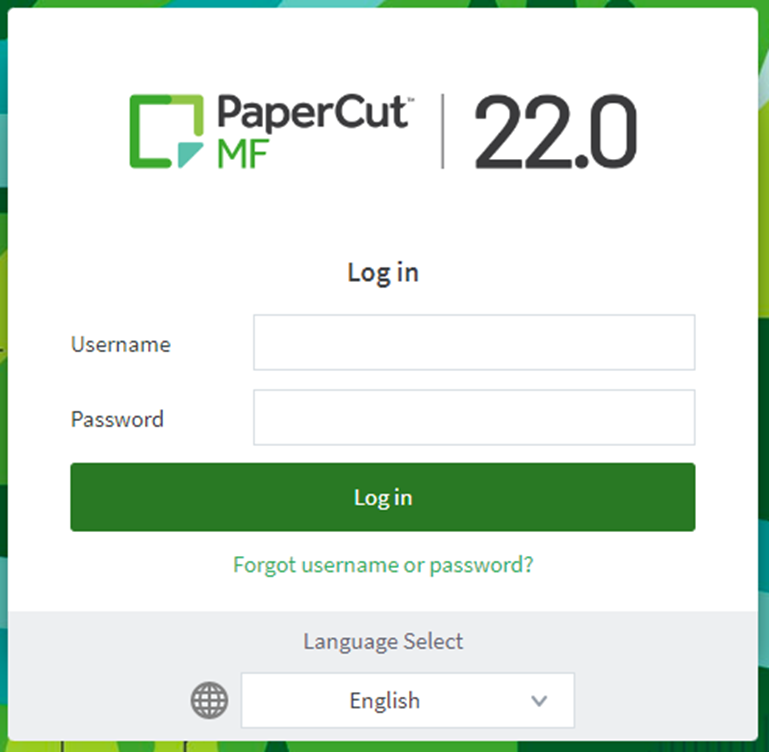
- Sign in with your Passport York username and password
- Select Submit a Job
- Type "SCS" and press the Enter key (or select the arrow) to continue
- Choose:
- SCS-STUDENT-BW for Black and White printing
- SCS-STUDENT-COL for Colour printing
- Select Print Options and Account Selection
- Type the Number of Copies to be printed and select Upload Documents
- Select Upload from Computer and choose your documents (or drag and drop your documents on this step)
- Select Upload & Complete to complete the submission
Submitted document(s) can be released at any of the Public Ricoh devices in the School of Continuing Studies building at 68 The Pond Road.
1: Browse to Webprint
2: Sign in with Passport York
3: Submit a Print Job

4: Search for a Printer

5: Select a Printer

6: Print Options and Account Selection

7: Upload Documents

8: Upload from Computer

9: Upload and Complete

Release a Print Job
- When you arrive at the Printer, tap your YU-Card on the card reader to sign in
- Alternately, you can sign in with your Passport York credentials on the touchscreen display at the top/front of the Printer
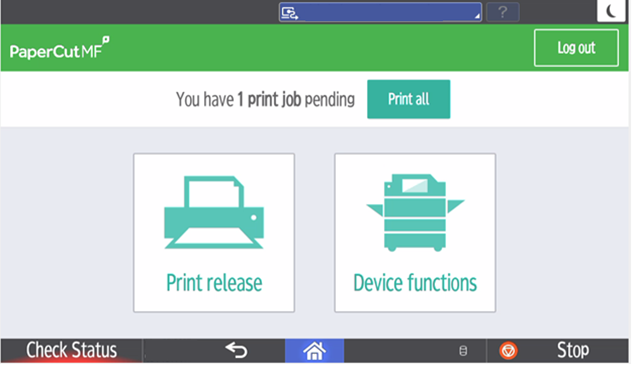
- Tap Print Release (on the touchscreen display)
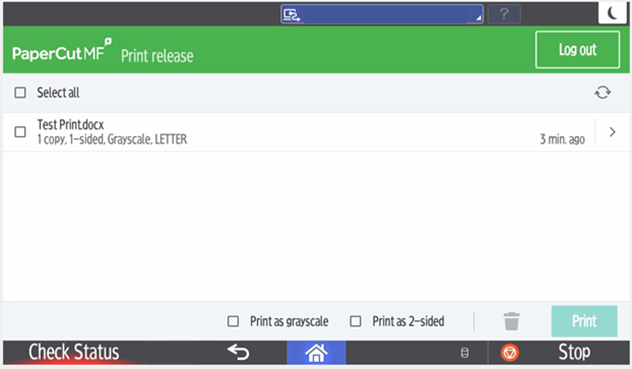
- Select the document(s) you wish to print, or tap Select All to print all document(s)
- Tap Print to send the documents to print
Don't forget to sign out!
2: Printer Functions
3-4: Print Release
Printing & Copying Locations
Troubleshooting & Frequently Asked Questions (FAQs)
Links
- Webprint Portal (web)
- Contact IT Support (web)