
Using the MAYA Admin and PY Admin support tools
How to Setup MAYA
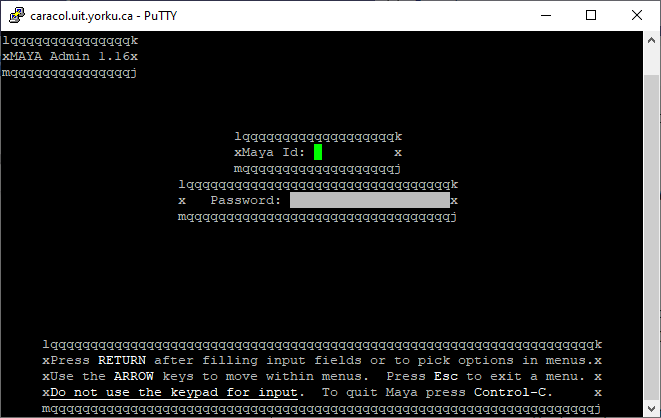
The MAYA admin tool is used to see a user's Passport York Account. The MAYA terminal is accessed using PuTTY a windows SSH client.
Preconditions:
- The Latest Version of PuTTY is downloaded.
- "madmin.ppk" file is downloaded
- Do not delete this file after setup
- This is the private key file used to SSH into the server
- Access to MAYA requires a VPN Connection IF connecting outside York University's Campus Network
Steps
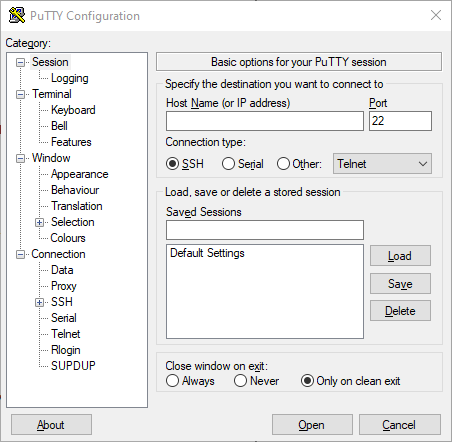
- Open PuTTY
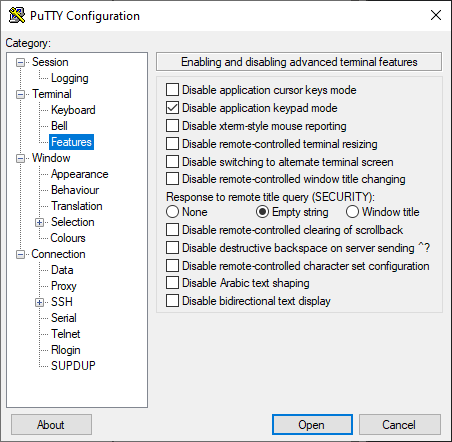
- Category > Terminal > Features: Place Checkmark besides "Disable application keypad Mode"
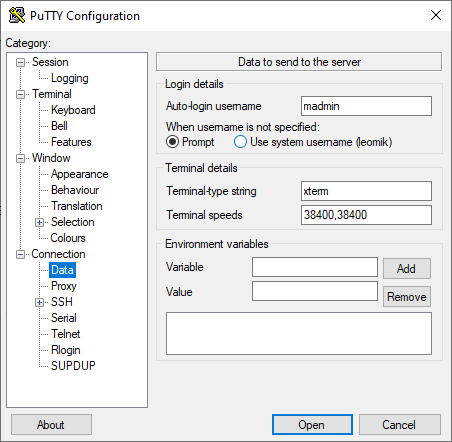
- Category > Connection > Data: Type "madmin" in the Auto-login username field.
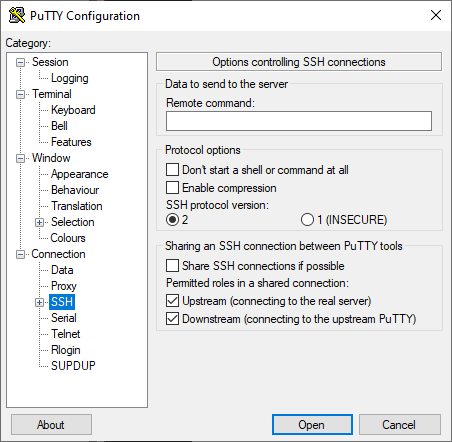
- Category > Connection > SSH: Set SSH protocol version to "2"
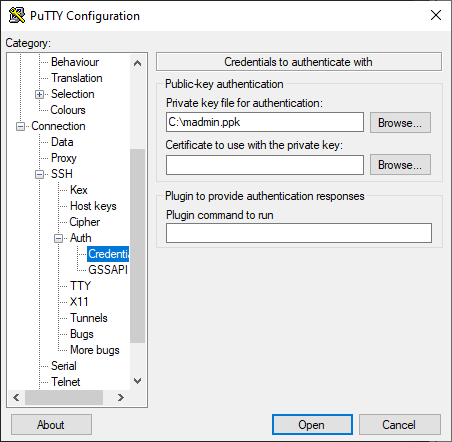
- Category > Connection > SSH > Auth > Credential: Select the "madmin.ppk" file for the Private key file for authentication field
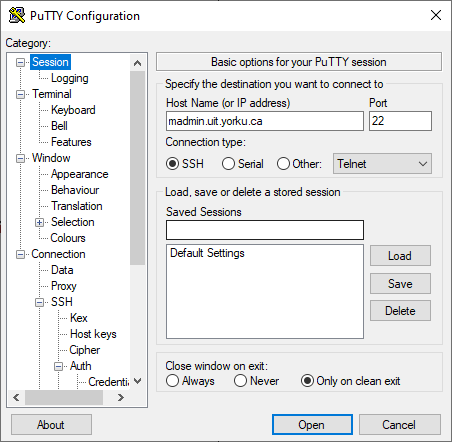
- Category > Session: enter "madmin.uit.yorku.ca" in the Host Name field
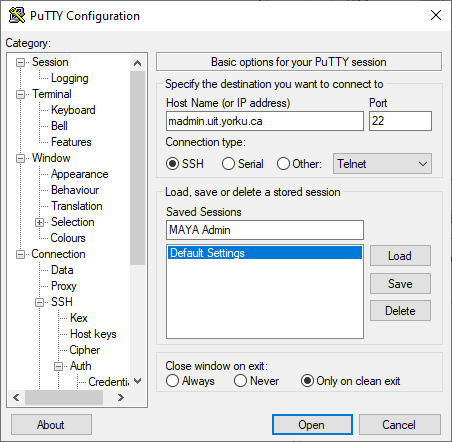
- Category > Session: Enter "Maya Admin" under the Saved Sessions field and click save.
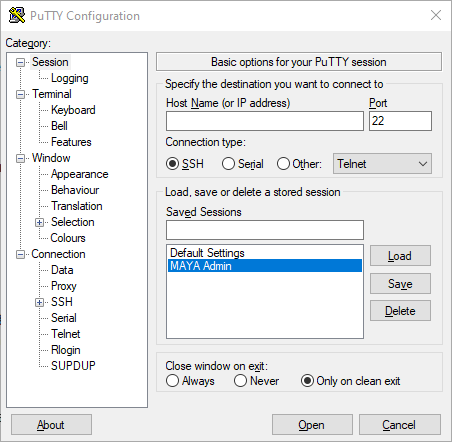
You can now access PuTTY by just double clicking on "MAYA Admin"
MAYA User Types
Just a brief and quick Guide on what type of Users Status you will encounter and Different Type of Account types which exist here at York University.
1.) YUELI (York University English Language Institute).
This is mainly which our SCS IT Department deals with. On MAYA It'll be shown something like this User Type: YUELI (STUDENT). Please refer to the photo below.

2.) UNDERGRAD/GRAD (UNDERGRADUATE STUDENTS/GRADUATE STUDENTS)
The user type undergrad usually indicates that they are studying in one of the undergraduate/Graduate programs at York University. On MAYA It'll be shown something like this User Type: UNDERGRAD (STUDENT) & User Type: GRAD (STUDENT) . Please refer to the photo below.
Please note if it's something related to Passport York Password reset or Duo reset we could do it but if its anything out of our scope for example transcripts its better off assigning it to UIT from HALO.

3.) UNKNOWN
- This usually indicates that the User Type is unknown. How ever you will be able to see what the account was before the User type changed to UNKNOWN eg User Type: UNKNOWN (Originally: Undergrad).
- Accounts usually turn Unknown due various of reasons for example the student is graduating or they are taking time of or they haven't paid the Minimum Fee's yet.
- People with user types UNKOWN will also have very really limited access. They can only access to things like Tax form module's, grades, transcripts. They cannot access things like Gmail, Microsoft Office etc etc.
- Refer UNKNOWN Students based on their previous Original Status. For example if User Type: UNKNOWN (Originally: Undergrad) please refer them to UIT as we don't deal with Undergrad or Grad Students and most of them usually want transcripts which we can't really handle.
4.) GUESTS
- We may or may not see guests account however York University does provide guest account for like visiting professor's, researchers, or people attending conferences.
- The user type will probably be like this User Type: GUEST - STAFF.
5.) EMPLOYEE
- Faculty and Staff are employee's of York university. You can usually see what department they are working for and please refer them to the respective IT department which the Professor corresponds to (example: if the professor is from Lassonde please refer them to Lassonde IT).
- You might come across User Type: UNKOWN here as well. It's probably cause their contract with HR or they aren't working anymore and many more reasons. Please note that once the user type changes to unknown employee's do not have access to almost anything.
- NOTE: Work/Study Staff cannot reset employee's password and we must need one of the Full Time Staff to deal with it.

GOOD TO KNOW STUFF
- Be careful with password resets. Always double check if your dealing with the right accounts. If you ever feel like the ticket your dealing with has some sort of red flags make sure to get more information from the student before doing anything.
- Don't use this outside of your workplace it has some really sensitive information.
- If you aren't sure of something always feel free to ask other Work/Study students who have more experience. If they aren't able to help try asking in the teams group chat. Communication is key to a workplace.