
Zoom (Online Classes & Recordings)
Overview
Please follow these steps, or review the attached guides, to sign in to the online classroom and meeting system (Zoom).
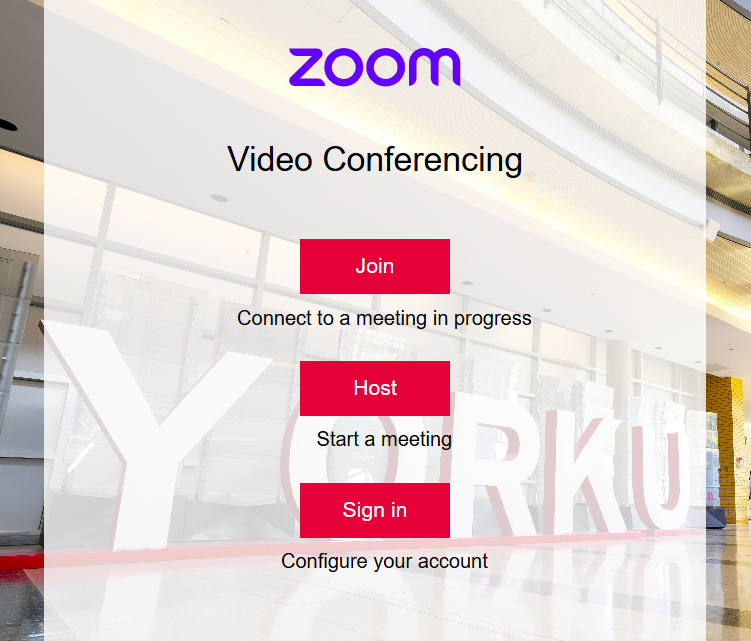
Download Zoom
- Browse to https://yorku.zoom.us
- Select Download Zoom from the menu
- Choose the download for your operating system (Windows or MacOS)
- Install the Zoom Workplace client software
Sign in to Zoom (before your meeting)
- Open the Zoom Workplace client software
- Select Sign In
- Choose the SSO (single sign-on) login method
- Enter yorku as the Company Domain
- Sign in with your Passport York username and password
Join a Zoom Class/Meeting
- Follow the "Enter Zoom Classroom" link from the Moodle course home page OR
- Follow the Meeting Link from the invitation communications OR
- Copy and paste the Meeting ID and Passcode invitation communication
Sign in to Zoom (during your meeting)
- Select Participants from the Zoom meeting menu
- Select Sign In
- Choose the SSO (single sign-on) login method
- Enter yorku as the Company Domain
- Sign in with your Passport York username and password
Guides
- Zoom Guide (PDF)
- Zoom Guide Video (MP4)